
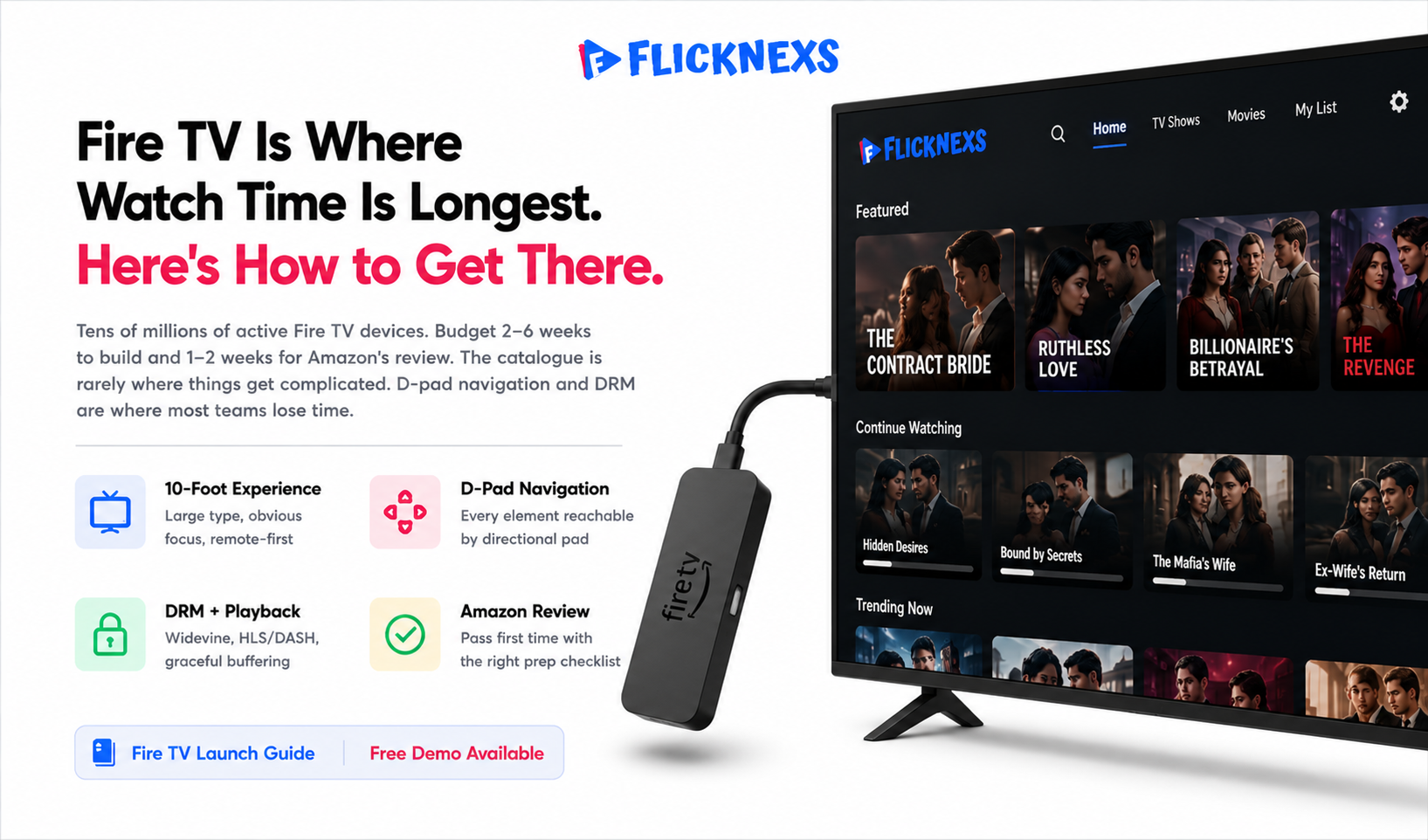
Building and publishing a Fire TV app means creating the app itself, native Android-based, a web app or a no-code build through an OTT platform, wiring up your video catalogue, playback and authentication, then putting it through the Amazon Developer Console for review against Fire TV’s quality and content policies. Most teams go one of two ways: a custom build using Amazon Fire App Builder and Android tooling or a white-label OTT provider that generates the Fire TV app for you.
Budget two to six weeks for a polished build and another one to two weeks for Amazon’s review. The catalogue is rarely where things get complicated. What actually takes time is getting the 10-foot experience right, making D-pad navigation feel natural, handling DRM properly across device types and clearing Amazon’s quality bar without having to resubmit.
By the Flicknexs team, we build white-label OTT/VOD/IPTV streaming platforms, so this is written from hands-on streaming-platform experience.
Amazon Fire TV is one of the highest-reach connected-TV surfaces on the planet. Tens of millions of active devices across Fire TV Sticks, Fire TV Cube and Fire TV Edition smart TVs. For an OTT service, a Fire TV app is often the single fastest way to get your content onto the living-room screen, which is where watch time is longest and subscription retention is strongest.
Most guides make this sound straightforward. It mostly is, until it isn’t. The catalogue integration is fine. What actually slows teams down is building something that genuinely feels native on a TV remote, getting DRM working correctly across device types and passing Amazon’s review without going back and forth on avoidable issues.
This guide covers the realistic paths to Fire TV app development, what each step actually involves and how to get through Amazon’s review without the frustrating round of rejections that catches most first-time publishers off guard.
Understand the Fire TV platform before you build
Fire TV runs Fire OS, a fork of Android. That single fact shapes every technical decision. A Fire TV app, under the hood, an Android app, but it is built for a remote control and a screen viewed from across a room, not a touchscreen. Getting this mental model right early prevents most of the rework teams run into later.
The three things Fire TV apps must get right
- The 10-foot experience. Type is larger, focus states are obvious and layouts are simpler than mobile. Users sit two to three meters away.
- D-pad / remote navigation. Every interactive element must be reachable and clearly highlighted with the directional pad. There is no touch and no mouse.
- Reliable playback. Adaptive streaming (HLS or MPEG-DASH), correct DRM for protected content and graceful handling of buffering and network drops.
Which devices you are targeting
Fire TV spans a range of hardware, from lower-memory streaming sticks to the more powerful Fire TV Cube. Your app must perform acceptably on the lower end, not just the device on your desk.Amazon’s review explicitly checks performance on representative hardware, so test on an actual entry-level Fire TV Stick before you submit anything. Here’s what happens when teams skip that step: the app feels perfectly smooth on a dev Cube, sails through internal QA and then stutters on a three-year-old Stick sitting in a reviewer’s lab. It comes back rejected. Buy the cheap Stick. It pays for itself the first time.
Choose your build path
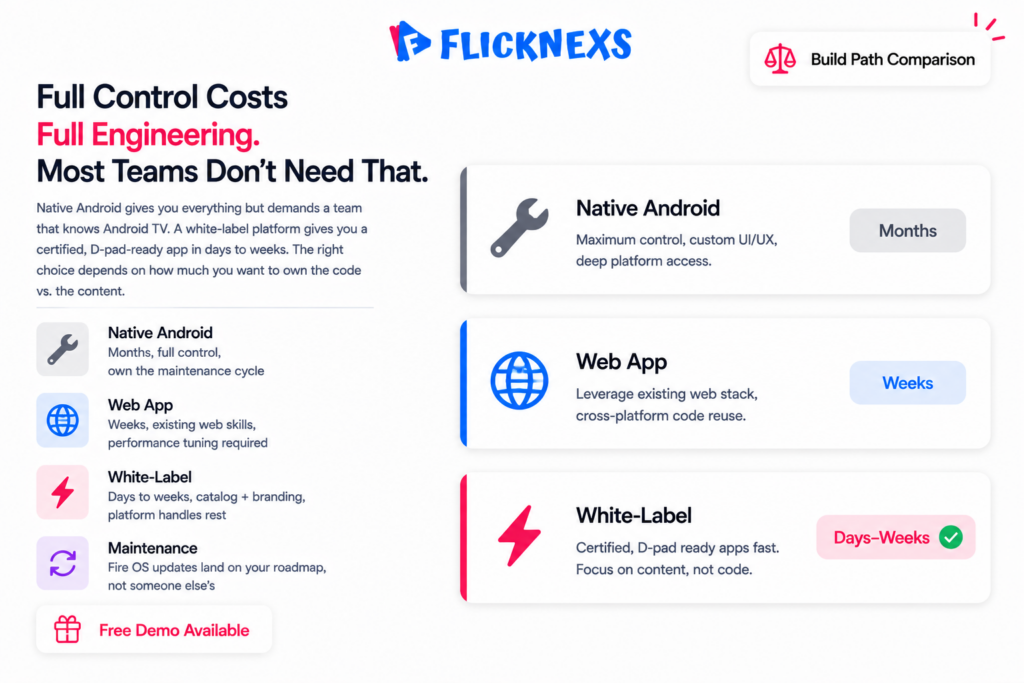
There are three practical routes to a Fire TV app. The right one depends on your engineering capacity, timeline and how much control you need over the experience.
| Approach | Best for | Typical timeline | Trade-off |
|---|---|---|---|
| Native Android / Fire App Builder | Teams with Android developers wanting full control | Several weeks to months | Highest effort and ongoing maintenance |
| Web app (HTML5 / web technologies) | Teams with strong web skills and a web-based player | Weeks | Performance tuning on low-end devices; input handling |
| White-label OTT platform (no-code/SDK) | Media businesses that want to launch fast and own content, not code | Days to a couple of weeks | Less low-level customization; tied to a platform |
Path 1: Native Android with Amazon’s tooling
Amazon historically provided the open-source Fire App Builder framework to scaffold a content-driven Fire TV app, and native development uses the standard Android toolchain (Android Studio, Kotlin/Java, ExoPlayer/Media3 for playback, Leanback components for the TV UI). This path gives you total control over UI, analytics and monetization logic. The catch is that you own the entire build, test and maintenance cycle, including keeping pace with Fire OS updates.
Path 2 : A web app
If your player and front end are already web-based, packaging a web app for Fire TV is a viable path. You’ll still need to handle remote-key events, focus management and performance budgets carefully though. Low-memory devices punish heavy JavaScript and bloated DOM trees in ways a desktop browser never would, and you’ll feel it under review if you haven’t optimised for it.
Path 3 : A white-label OTT platform
This is the route most media businesses choose. A platform like our OTT app builder generates a branded Fire TV app that is already wired to your content management system, subscriptions, DRM and analytics. You manage your catalog and branding; the heavy engineering (playback, navigation, certification-ready quality) is handled for you. If you are weighing this against coding it yourself, our guide to a no-code OTT app builder goes deeper on the trade-offs.
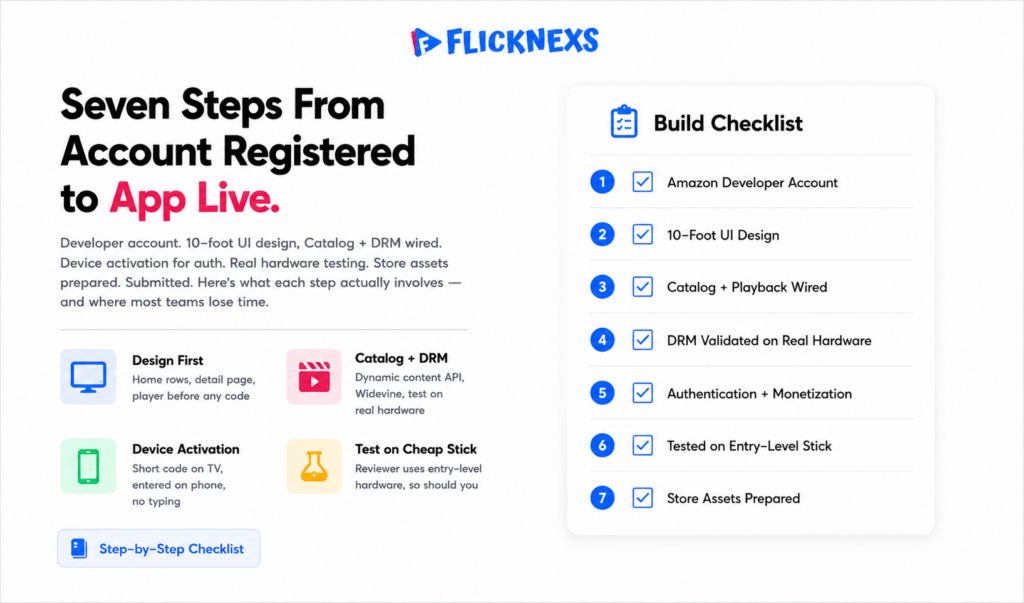
Step-by-step: from account to published app
Step 1: Register an Amazon Developer account
Create an account at the Amazon Developer portal. This is free and gives you access to the Developer Console where you will submit and manage your app, set pricing/availability and track review status.
Step 2: Design for the living room first
Before any code, lay out your home rows, content detail pages, search and the player. Prioritize a focus-driven grid of artwork, a clear “resume / continue watching” entry point and a player with the standard transport controls mapped to remote keys. Keep the first screen fast. A slow or empty home screen is the most common reason users abandon a new CTV app.
Step 3: Integrate your catalog and playback
Wire the app up to your content API so titles, metadata, artwork and categories load dynamically. Nothing hardcoded in the build that needs a resubmission every time your catalogue changes. For playback, HLS or DASH with adaptive bitrate so the stream adjusts to whatever connection the viewer is actually on. And before you go anywhere near submission, validate that your DRM is working correctly. Widevine on Fire OS in most cases, but test it properly on real hardware, not just your dev environment where everything always works fine.
Test trick-play thoroughly. Seek, pause, resume. It sounds basic but this is one of the areas reviewers actually check and a buggy scrub bar on a TV remote is a different kind of broken than it is on a phone.
Step 4: Wire up authentication and monetization
Decide how viewers sign in. Because typing on a TV remote is painful, the strongest pattern is device activation: the TV shows a short code, the user enters it on their phone or computer and the app activates. For paid services you must follow Amazon’s in-app purchase rules where applicable; many subscription OTT apps use account-based entitlement combined with Amazon’s required purchase flows. Confirm the current policy in Amazon’s documentation before locking in your billing approach.
Step 5: Test on real hardware
Side-load the app to a physical Fire TV Stick and run through every screen with only the remote. Check focus order, back-button behavior, deep links, playback under throttled network and memory on a lower-end device. This is where most certification failures are caught or if you skip it, where Amazon catches them for you. One habit that saves a lot of pain: hide your mouse and trackpad while you test and force yourself to drive the whole app with just the remote. The dead spots in your focus navigation show up in about thirty seconds.
Step 6: Prepare store assets
You will need app icons, screenshots from the actual app, a feature graphic, a clear description, content rating information and a privacy policy URL. High-quality, accurate screenshots matter. They are your storefront.
Step 7: Submit for review and certification
Upload your APK/build and metadata in the Developer Console and submit. Amazon reviews against its app quality guidelines (functionality, performance, navigation) and content policies. Review commonly takes a number of business days; plan for at least one revision cycle on a first submission.
Passing Amazon’s review the first time
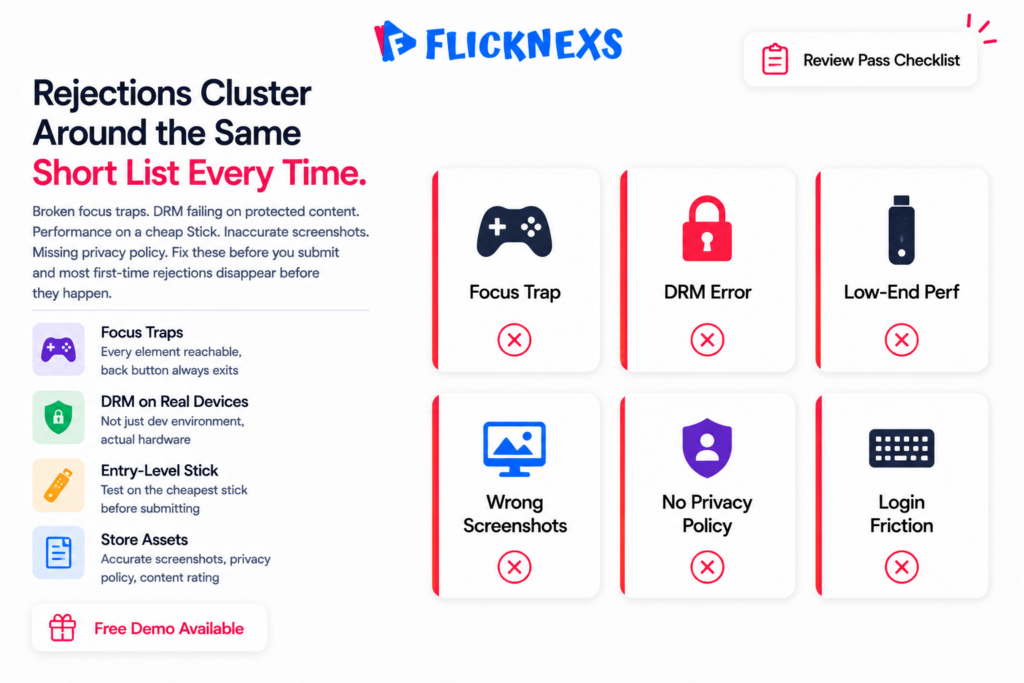
Rejections usually cluster around a short list of issues. Address these before you submit:Fire TV app Amazon review checklist banner showing a grid of common rejection reasons including broken focus navigation, DRM playback errors, low-end device crashes and missing privacy policy with pass or fail indicators
- Broken or trapped focus. An element the remote cannot reach, or a screen the back button cannot exit, is an instant fail.
- Playback errors. Streams that fail to start, stutter, or mishandle DRM on protected content.
- Crashes or poor performance on low-end devices. Test on the cheapest Fire TV Stick you can find.
- Inaccurate metadata or screenshots. Store imagery must reflect the real app.
- Missing privacy policy or incorrect content rating. Both are mandatory.
- Login friction. A sign-in that demands heavy typing on the remote frustrates reviewers and users alike, so offer device activation.
Amazon publishes its quality guidelines and submission process in the Amazon Developer documentation, which is the authoritative source for current certification requirements. For the underlying input and accessibility model, Android’s TV guidance from Google’s developer documentation is useful since Fire OS is Android-based. For background on the platform itself, see the Fire TV overview on Wikipedia.
How a white-label platform shortens the path
Building, certifying and maintaining a Fire TV app in-house is real engineering. A white-label OTT platform compresses it because the playback engine, DRM integration, remote-navigation UI and certification-ready quality are already solved and battle-tested. You point the app at your catalog, apply your branding, configure monetization and submit. Just as importantly, when Fire OS changes or Amazon updates its requirements, that maintenance is handled centrally rather than landing on your roadmap. That last point is the one teams underrate: a Fire TV app is never “done.” Fire OS ships updates, Amazon tightens its quality bar and a build that certified clean last year can quietly start failing. Someone has to own that and with a platform it isn’t you. The same logic applies across devices. If Fire TV is your first surface, the same content and subscriptions can extend to Apple TV, Roku, Android TV and more from one back end. Our OTT apps for every device hub covers that multi-device strategy and the Apple TV launch guide is a useful companion if tvOS is also on your list.
Frequently asked questions
Related guides
- OTT Apps for Every Device: Roku, Fire TV, Apple TV, Android TV & Smart TVs
- How to Launch an Apple TV App for Your Streaming Platform
- No-Code OTT App Builder: Launch Branded TV & Mobile Apps Without Developers
Ready to build?
If you’re planning your next TV Apps project, Flicknexs handles the video infrastructure end-to-end — so you can ship in weeks, not months.
- launch on Fire TV
- get a quote
More on TV app development
Continue exploring more on this topic across the Flicknexs blog.
- The definitive guide: How to Create Your Own TV Channel App in 2026: Full Guide
- Create Your Own Online TV Channel: Step-by-Step Guide
- What is Smart Tv? Everything you need to know
- How to Launch an Apple TV App for Your Streaming Platform
Ready to build?
If you’re planning your next TV Apps project, Flicknexs handles the video infrastructure end-to-end — so you can ship in weeks, not months.
- launch on Fire TV
- get a quote
More on TV app development
Continue exploring more on this topic across the Flicknexs blog.
- The definitive guide: How to Create Your Own TV Channel App in 2026: Full Guide
- Create Your Own Online TV Channel: Step-by-Step Guide
- What is Smart Tv? Everything you need to know
- How to Launch an Apple TV App for Your Streaming Platform
Ready to build?
If you’re planning your next TV Apps project, Flicknexs handles the video infrastructure end-to-end — so you can ship in weeks, not months.
- launch on Fire TV
- get a quote
More on TV app development
Continue exploring more on this topic across the Flicknexs blog.
- The definitive guide: How to Create Your Own TV Channel App in 2026: Full Guide
- Create Your Own Online TV Channel: Step-by-Step Guide
- What is Smart Tv? Everything you need to know
- How to Launch an Apple TV App for Your Streaming Platform
Ready to build?
If you’re planning your next TV Apps project, Flicknexs handles the video infrastructure end-to-end — so you can ship in weeks, not months.
- launch on Fire TV
- get a quote
More on TV app development
Continue exploring more on this topic across the Flicknexs blog.
- The definitive guide: How to Create Your Own TV Channel App in 2026: Full Guide
- Create Your Own Online TV Channel: Step-by-Step Guide
- What is Smart Tv? Everything you need to know
- How to Launch an Apple TV App for Your Streaming Platform
Ready to build?
If you’re planning your next TV Apps project, Flicknexs handles the video infrastructure end-to-end — so you can ship in weeks, not months.
- launch on Fire TV
- get a quote
More on TV app development
Continue exploring more on this topic across the Flicknexs blog.
- The definitive guide: How to Create Your Own TV Channel App in 2026: Full Guide
- Create Your Own Online TV Channel: Step-by-Step Guide
- What is Smart Tv? Everything you need to know
- How to Launch an Apple TV App for Your Streaming Platform
Ready to build?
If you’re planning your next TV Apps project, Flicknexs handles the video infrastructure end-to-end — so you can ship in weeks, not months.
- launch on Fire TV
- get a quote
More on TV app development
Continue exploring more on this topic across the Flicknexs blog.
- The definitive guide: How to Create Your Own TV Channel App in 2026: Full Guide
- Create Your Own Online TV Channel: Step-by-Step Guide
- What is Smart Tv? Everything you need to know
- How to Launch an Apple TV App for Your Streaming Platform
Ready to build?
If you’re planning your next TV Apps project, Flicknexs handles the video infrastructure end-to-end — so you can ship in weeks, not months.
- launch on Fire TV
- get a quote
More on TV app development
Continue exploring more on this topic across the Flicknexs blog.
- The definitive guide: How to Create Your Own TV Channel App in 2026: Full Guide
- Create Your Own Online TV Channel: Step-by-Step Guide
- What is Smart Tv? Everything you need to know
- How to Launch an Apple TV App for Your Streaming Platform
Ready to build?
If you’re planning your next TV Apps project, Flicknexs handles the video infrastructure end-to-end — so you can ship in weeks, not months.
- launch on Fire TV
- get a quote
More on TV app development
Continue exploring more on this topic across the Flicknexs blog.
- The definitive guide: How to Create Your Own TV Channel App in 2026: Full Guide
- Create Your Own Online TV Channel: Step-by-Step Guide
- What is Smart Tv? Everything you need to know
- How to Launch an Apple TV App for Your Streaming Platform
Ready to build?
If you’re planning your next TV Apps project, Flicknexs handles the video infrastructure end-to-end — so you can ship in weeks, not months.
- launch on Fire TV
- get a quote
More on TV app development
Continue exploring more on this topic across the Flicknexs blog.
- The definitive guide: How to Create Your Own TV Channel App in 2026: Full Guide
- Create Your Own Online TV Channel: Step-by-Step Guide
- What is Smart Tv? Everything you need to know
- How to Launch an Apple TV App for Your Streaming Platform
Ready to build?
If you’re planning your next TV Apps project, Flicknexs handles the video infrastructure end-to-end — so you can ship in weeks, not months.
- launch on Fire TV
- get a quote
More on TV app development
Continue exploring more on this topic across the Flicknexs blog.
- The definitive guide: How to Create Your Own TV Channel App in 2026: Full Guide
- Create Your Own Online TV Channel: Step-by-Step Guide
- What is Smart Tv? Everything you need to know
- How to Launch an Apple TV App for Your Streaming Platform
Ready to build?
If you’re planning your next TV Apps project, Flicknexs handles the video infrastructure end-to-end — so you can ship in weeks, not months.
- launch on Fire TV
- get a quote
More on TV app development
Continue exploring more on this topic across the Flicknexs blog.
- The definitive guide: How to Create Your Own TV Channel App in 2026: Full Guide
- Create Your Own Online TV Channel: Step-by-Step Guide
- What is Smart Tv? Everything you need to know
- How to Launch an Apple TV App for Your Streaming Platform
Ready to build?
If you’re planning your next TV Apps project, Flicknexs handles the video infrastructure end-to-end — so you can ship in weeks, not months.
- launch on Fire TV
- get a quote
More on TV app development
Continue exploring more on this topic across the Flicknexs blog.
- The definitive guide: How to Create Your Own TV Channel App in 2026: Full Guide
- Create Your Own Online TV Channel: Step-by-Step Guide
- What is Smart Tv? Everything you need to know
- How to Launch an Apple TV App for Your Streaming Platform
Ready to build?
If you’re planning your next TV Apps project, Flicknexs handles the video infrastructure end-to-end — so you can ship in weeks, not months.
- launch on Fire TV
- get a quote
More on TV app development
Continue exploring more on this topic across the Flicknexs blog.
- The definitive guide: How to Create Your Own TV Channel App in 2026: Full Guide
- Create Your Own Online TV Channel: Step-by-Step Guide
- What is Smart Tv? Everything you need to know
- How to Launch an Apple TV App for Your Streaming Platform
Ready to build?
If you’re planning your next TV Apps project, Flicknexs handles the video infrastructure end-to-end — so you can ship in weeks, not months.
- launch on Fire TV
- get a quote
More on TV app development
Continue exploring more on this topic across the Flicknexs blog.
- The definitive guide: How to Create Your Own TV Channel App in 2026: Full Guide
- Create Your Own Online TV Channel: Step-by-Step Guide
- What is Smart Tv? Everything you need to know
- How to Launch an Apple TV App for Your Streaming Platform
Ready to build?
If you’re planning your next TV Apps project, Flicknexs handles the video infrastructure end-to-end — so you can ship in weeks, not months.
- launch on Fire TV
- get a quote
More on TV app development
Continue exploring more on this topic across the Flicknexs blog.
- The definitive guide: How to Create Your Own TV Channel App in 2026: Full Guide
- Create Your Own Online TV Channel: Step-by-Step Guide
- What is Smart Tv? Everything you need to know
- How to Launch an Apple TV App for Your Streaming Platform
Ready to build?
If you’re planning your next TV Apps project, Flicknexs handles the video infrastructure end-to-end — so you can ship in weeks, not months.
- launch on Fire TV
- get a quote
More on TV app development
Continue exploring more on this topic across the Flicknexs blog.
- The definitive guide: How to Create Your Own TV Channel App in 2026: Full Guide
- Create Your Own Online TV Channel: Step-by-Step Guide
- What is Smart Tv? Everything you need to know
- How to Launch an Apple TV App for Your Streaming Platform
Ready to build?
If you’re planning your next TV Apps project, Flicknexs handles the video infrastructure end-to-end — so you can ship in weeks, not months.
- launch on Fire TV
- get a quote
More on TV app development
Continue exploring more on this topic across the Flicknexs blog.
- The definitive guide: How to Create Your Own TV Channel App in 2026: Full Guide
- Create Your Own Online TV Channel: Step-by-Step Guide
- What is Smart Tv? Everything you need to know
- How to Launch an Apple TV App for Your Streaming Platform
Ready to build?
If you’re planning your next TV Apps project, Flicknexs handles the video infrastructure end-to-end — so you can ship in weeks, not months.
- launch on Fire TV
- get a quote
More on TV app development
Continue exploring more on this topic across the Flicknexs blog.
- The definitive guide: How to Create Your Own TV Channel App in 2026: Full Guide
- Create Your Own Online TV Channel: Step-by-Step Guide
- What is Smart Tv? Everything you need to know
- How to Launch an Apple TV App for Your Streaming Platform
Ready to build?
If you’re planning your next TV Apps project, Flicknexs handles the video infrastructure end-to-end — so you can ship in weeks, not months.
- launch on Fire TV
- get a quote
More on TV app development
Continue exploring more on this topic across the Flicknexs blog.
- The definitive guide: How to Create Your Own TV Channel App in 2026: Full Guide
- Create Your Own Online TV Channel: Step-by-Step Guide
- What is Smart Tv? Everything you need to know
- How to Launch an Apple TV App for Your Streaming Platform
Ready to build?
If you’re planning your next TV Apps project, Flicknexs handles the video infrastructure end-to-end — so you can ship in weeks, not months.
- launch on Fire TV
- get a quote
More on TV app development
Continue exploring more on this topic across the Flicknexs blog.
- The definitive guide: How to Create Your Own TV Channel App in 2026: Full Guide
- Create Your Own Online TV Channel: Step-by-Step Guide
- What is Smart Tv? Everything you need to know
- How to Launch an Apple TV App for Your Streaming Platform
Ready to build?
If you’re planning your next TV Apps project, Flicknexs handles the video infrastructure end-to-end — so you can ship in weeks, not months.
- launch on Fire TV
- get a quote
More on TV app development
Continue exploring more on this topic across the Flicknexs blog.
- The definitive guide: How to Create Your Own TV Channel App in 2026: Full Guide
- Create Your Own Online TV Channel: Step-by-Step Guide
- What is Smart Tv? Everything you need to know
- How to Launch an Apple TV App for Your Streaming Platform
Ready to build?
If you’re planning your next TV Apps project, Flicknexs handles the video infrastructure end-to-end — so you can ship in weeks, not months.
- launch on Fire TV
- get a quote
More on TV app development
Continue exploring more on this topic across the Flicknexs blog.
- The definitive guide: How to Create Your Own TV Channel App in 2026: Full Guide
- Create Your Own Online TV Channel: Step-by-Step Guide
- What is Smart Tv? Everything you need to know
- How to Launch an Apple TV App for Your Streaming Platform
Ready to build?
If you’re planning your next TV Apps project, Flicknexs handles the video infrastructure end-to-end — so you can ship in weeks, not months.
- launch on Fire TV
- get a quote
More on TV app development
Continue exploring more on this topic across the Flicknexs blog.
- The definitive guide: How to Create Your Own TV Channel App in 2026: Full Guide
- Create Your Own Online TV Channel: Step-by-Step Guide
- What is Smart Tv? Everything you need to know
- How to Launch an Apple TV App for Your Streaming Platform
Ready to build?
If you’re planning your next TV Apps project, Flicknexs handles the video infrastructure end-to-end — so you can ship in weeks, not months.
- launch on Fire TV
- get a quote
More on TV app development
Continue exploring more on this topic across the Flicknexs blog.
- The definitive guide: How to Create Your Own TV Channel App in 2026: Full Guide
- Create Your Own Online TV Channel: Step-by-Step Guide
- What is Smart Tv? Everything you need to know
- How to Launch an Apple TV App for Your Streaming Platform
Ready to build?
If you’re planning your next TV Apps project, Flicknexs handles the video infrastructure end-to-end — so you can ship in weeks, not months.
- launch on Fire TV
- get a quote
More on TV app development
Continue exploring more on this topic across the Flicknexs blog.
- The definitive guide: How to Create Your Own TV Channel App in 2026: Full Guide
- Create Your Own Online TV Channel: Step-by-Step Guide
- What is Smart Tv? Everything you need to know
- How to Launch an Apple TV App for Your Streaming Platform
Ready to build?
If you’re planning your next TV Apps project, Flicknexs handles the video infrastructure end-to-end — so you can ship in weeks, not months.
- launch on Fire TV
- get a quote
More on TV app development
Continue exploring more on this topic across the Flicknexs blog.
- The definitive guide: How to Create Your Own TV Channel App in 2026: Full Guide
- Create Your Own Online TV Channel: Step-by-Step Guide
- What is Smart Tv? Everything you need to know
- How to Launch an Apple TV App for Your Streaming Platform
Ready to build?
If you’re planning your next TV Apps project, Flicknexs handles the video infrastructure end-to-end — so you can ship in weeks, not months.
- launch on Fire TV
- get a quote
More on TV app development
Continue exploring more on this topic across the Flicknexs blog.
- The definitive guide: How to Create Your Own TV Channel App in 2026: Full Guide
- Create Your Own Online TV Channel: Step-by-Step Guide
- What is Smart Tv? Everything you need to know
- How to Launch an Apple TV App for Your Streaming Platform
Ready to build?
If you’re planning your next TV Apps project, Flicknexs handles the video infrastructure end-to-end — so you can ship in weeks, not months.
- launch on Fire TV
- get a quote
More on TV app development
Continue exploring more on this topic across the Flicknexs blog.
- The definitive guide: How to Create Your Own TV Channel App in 2026: Full Guide
- Create Your Own Online TV Channel: Step-by-Step Guide
- What is Smart Tv? Everything you need to know
- How to Launch an Apple TV App for Your Streaming Platform
Ready to build?
If you’re planning your next TV Apps project, Flicknexs handles the video infrastructure end-to-end — so you can ship in weeks, not months.
- launch on Fire TV
- get a quote
More on TV app development
Continue exploring more on this topic across the Flicknexs blog.
- The definitive guide: How to Create Your Own TV Channel App in 2026: Full Guide
- Create Your Own Online TV Channel: Step-by-Step Guide
- What is Smart Tv? Everything you need to know
- How to Launch an Apple TV App for Your Streaming Platform
Ready to build?
If you’re planning your next TV Apps project, Flicknexs handles the video infrastructure end-to-end — so you can ship in weeks, not months.
- launch on Fire TV
- get a quote
More on TV app development
Continue exploring more on this topic across the Flicknexs blog.
- The definitive guide: How to Create Your Own TV Channel App in 2026: Full Guide
- Create Your Own Online TV Channel: Step-by-Step Guide
- What is Smart Tv? Everything you need to know
- How to Launch an Apple TV App for Your Streaming Platform
Ready to build?
If you’re planning your next TV Apps project, Flicknexs handles the video infrastructure end-to-end — so you can ship in weeks, not months.
- launch on Fire TV
- get a quote
More on TV app development
Continue exploring more on this topic across the Flicknexs blog.
- The definitive guide: How to Create Your Own TV Channel App in 2026: Full Guide
- Create Your Own Online TV Channel: Step-by-Step Guide
- What is Smart Tv? Everything you need to know
- How to Launch an Apple TV App for Your Streaming Platform
Ready to build?
If you’re planning your next TV Apps project, Flicknexs handles the video infrastructure end-to-end — so you can ship in weeks, not months.
- launch on Fire TV
- get a quote
More on TV app development
Continue exploring more on this topic across the Flicknexs blog.
- The definitive guide: How to Create Your Own TV Channel App in 2026: Full Guide
- Create Your Own Online TV Channel: Step-by-Step Guide
- What is Smart Tv? Everything you need to know
- How to Launch an Apple TV App for Your Streaming Platform
Ready to build?
If you’re planning your next TV Apps project, Flicknexs handles the video infrastructure end-to-end — so you can ship in weeks, not months.
- launch on Fire TV
- get a quote
More on TV app development
Continue exploring more on this topic across the Flicknexs blog.
- The definitive guide: How to Create Your Own TV Channel App in 2026: Full Guide
- Create Your Own Online TV Channel: Step-by-Step Guide
- What is Smart Tv? Everything you need to know
- How to Launch an Apple TV App for Your Streaming Platform
Ready to build?
If you’re planning your next TV Apps project, Flicknexs handles the video infrastructure end-to-end — so you can ship in weeks, not months.
- launch on Fire TV
- get a quote
More on TV app development
Continue exploring more on this topic across the Flicknexs blog.
- The definitive guide: How to Create Your Own TV Channel App in 2026: Full Guide
- Create Your Own Online TV Channel: Step-by-Step Guide
- What is Smart Tv? Everything you need to know
- How to Launch an Apple TV App for Your Streaming Platform
Ready to build?
If you’re planning your next TV Apps project, Flicknexs handles the video infrastructure end-to-end — so you can ship in weeks, not months.
- launch on Fire TV
- get a quote
More on TV app development
Continue exploring more on this topic across the Flicknexs blog.
- The definitive guide: How to Create Your Own TV Channel App in 2026: Full Guide
- Create Your Own Online TV Channel: Step-by-Step Guide
- What is Smart Tv? Everything you need to know
- How to Launch an Apple TV App for Your Streaming Platform
Ready to build?
If you’re planning your next TV Apps project, Flicknexs handles the video infrastructure end-to-end — so you can ship in weeks, not months.
- launch on Fire TV
- get a quote
More on TV app development
Continue exploring more on this topic across the Flicknexs blog.
- The definitive guide: How to Create Your Own TV Channel App in 2026: Full Guide
- Create Your Own Online TV Channel: Step-by-Step Guide
- What is Smart Tv? Everything you need to know
- How to Launch an Apple TV App for Your Streaming Platform
Ready to build?
If you’re planning your next TV Apps project, Flicknexs handles the video infrastructure end-to-end — so you can ship in weeks, not months.
- launch on Fire TV
- get a quote
More on TV app development
Continue exploring more on this topic across the Flicknexs blog.
- The definitive guide: How to Create Your Own TV Channel App in 2026: Full Guide
- Create Your Own Online TV Channel: Step-by-Step Guide
- What is Smart Tv? Everything you need to know
- How to Launch an Apple TV App for Your Streaming Platform
Ready to build?
If you’re planning your next TV Apps project, Flicknexs handles the video infrastructure end-to-end — so you can ship in weeks, not months.
- launch on Fire TV
- get a quote
More on TV app development
Continue exploring more on this topic across the Flicknexs blog.
- The definitive guide: How to Create Your Own TV Channel App in 2026: Full Guide
- Create Your Own Online TV Channel: Step-by-Step Guide
- What is Smart Tv? Everything you need to know
- How to Launch an Apple TV App for Your Streaming Platform
Ready to build?
If you’re planning your next TV Apps project, Flicknexs handles the video infrastructure end-to-end — so you can ship in weeks, not months.
- launch on Fire TV
- get a quote
More on TV app development
Continue exploring more on this topic across the Flicknexs blog.
- The definitive guide: How to Create Your Own TV Channel App in 2026: Full Guide
- Create Your Own Online TV Channel: Step-by-Step Guide
- What is Smart Tv? Everything you need to know
- How to Launch an Apple TV App for Your Streaming Platform
Ready to build?
If you’re planning your next TV Apps project, Flicknexs handles the video infrastructure end-to-end — so you can ship in weeks, not months.
- launch on Fire TV
- get a quote
More on TV app development
Continue exploring more on this topic across the Flicknexs blog.
- The definitive guide: How to Create Your Own TV Channel App in 2026: Full Guide
- Create Your Own Online TV Channel: Step-by-Step Guide
- What is Smart Tv? Everything you need to know
- How to Launch an Apple TV App for Your Streaming Platform
Ready to build?
If you’re planning your next TV Apps project, Flicknexs handles the video infrastructure end-to-end — so you can ship in weeks, not months.
- launch on Fire TV
- get a quote
More on TV app development
Continue exploring more on this topic across the Flicknexs blog.
- The definitive guide: How to Create Your Own TV Channel App in 2026: Full Guide
- Create Your Own Online TV Channel: Step-by-Step Guide
- What is Smart Tv? Everything you need to know
- How to Launch an Apple TV App for Your Streaming Platform
Ready to build?
If you’re planning your next TV Apps project, Flicknexs handles the video infrastructure end-to-end — so you can ship in weeks, not months.
- launch on Fire TV
- get a quote
More on TV app development
Continue exploring more on this topic across the Flicknexs blog.
- The definitive guide: How to Create Your Own TV Channel App in 2026: Full Guide
- Create Your Own Online TV Channel: Step-by-Step Guide
- What is Smart Tv? Everything you need to know
- How to Launch an Apple TV App for Your Streaming Platform
Ready to build?
If you’re planning your next TV Apps project, Flicknexs handles the video infrastructure end-to-end — so you can ship in weeks, not months.
- launch on Fire TV
- get a quote
More on TV app development
Continue exploring more on this topic across the Flicknexs blog.
- The definitive guide: How to Create Your Own TV Channel App in 2026: Full Guide
- Create Your Own Online TV Channel: Step-by-Step Guide
- What is Smart Tv? Everything you need to know
- How to Launch an Apple TV App for Your Streaming Platform
Ready to build?
If you’re planning your next TV Apps project, Flicknexs handles the video infrastructure end-to-end — so you can ship in weeks, not months.
- launch on Fire TV
- get a quote
More on TV app development
Continue exploring more on this topic across the Flicknexs blog.
- The definitive guide: How to Create Your Own TV Channel App in 2026: Full Guide
- Create Your Own Online TV Channel: Step-by-Step Guide
- What is Smart Tv? Everything you need to know
- How to Launch an Apple TV App for Your Streaming Platform
Ready to build?
If you’re planning your next TV Apps project, Flicknexs handles the video infrastructure end-to-end — so you can ship in weeks, not months.
- launch on Fire TV
- get a quote
More on TV app development
Continue exploring more on this topic across the Flicknexs blog.
- The definitive guide: How to Create Your Own TV Channel App in 2026: Full Guide
- Create Your Own Online TV Channel: Step-by-Step Guide
- What is Smart Tv? Everything you need to know
- How to Launch an Apple TV App for Your Streaming Platform
Ready to build?
If you’re planning your next TV Apps project, Flicknexs handles the video infrastructure end-to-end — so you can ship in weeks, not months.
- launch on Fire TV
- get a quote
More on TV app development
Continue exploring more on this topic across the Flicknexs blog.
- The definitive guide: How to Create Your Own TV Channel App in 2026: Full Guide
- Create Your Own Online TV Channel: Step-by-Step Guide
- What is Smart Tv? Everything you need to know
- How to Launch an Apple TV App for Your Streaming Platform
Ready to build?
If you’re planning your next TV Apps project, Flicknexs handles the video infrastructure end-to-end — so you can ship in weeks, not months.
- launch on Fire TV
- get a quote
More on TV app development
Continue exploring more on this topic across the Flicknexs blog.
- The definitive guide: How to Create Your Own TV Channel App in 2026: Full Guide
- Create Your Own Online TV Channel: Step-by-Step Guide
- What is Smart Tv? Everything you need to know
- How to Launch an Apple TV App for Your Streaming Platform
Ready to build?
If you’re planning your next TV Apps project, Flicknexs handles the video infrastructure end-to-end — so you can ship in weeks, not months.
- launch on Fire TV
- get a quote
More on TV app development
Continue exploring more on this topic across the Flicknexs blog.
- The definitive guide: How to Create Your Own TV Channel App in 2026: Full Guide
- Create Your Own Online TV Channel: Step-by-Step Guide
- What is Smart Tv? Everything you need to know
- How to Launch an Apple TV App for Your Streaming Platform
Ready to build?
If you’re planning your next TV Apps project, Flicknexs handles the video infrastructure end-to-end — so you can ship in weeks, not months.
- launch on Fire TV
- get a quote
More on TV app development
Continue exploring more on this topic across the Flicknexs blog.